SIGN & SEND
How to scan, sign, and email a document on iPhone
Workflow checked against the current ScanFile interface · August 17, 2026
You can turn a paper form into a signed PDF without moving the work to a computer. The important part is the order: capture first, correct the page, add the signature, inspect the finished document, and only then open the email draft.
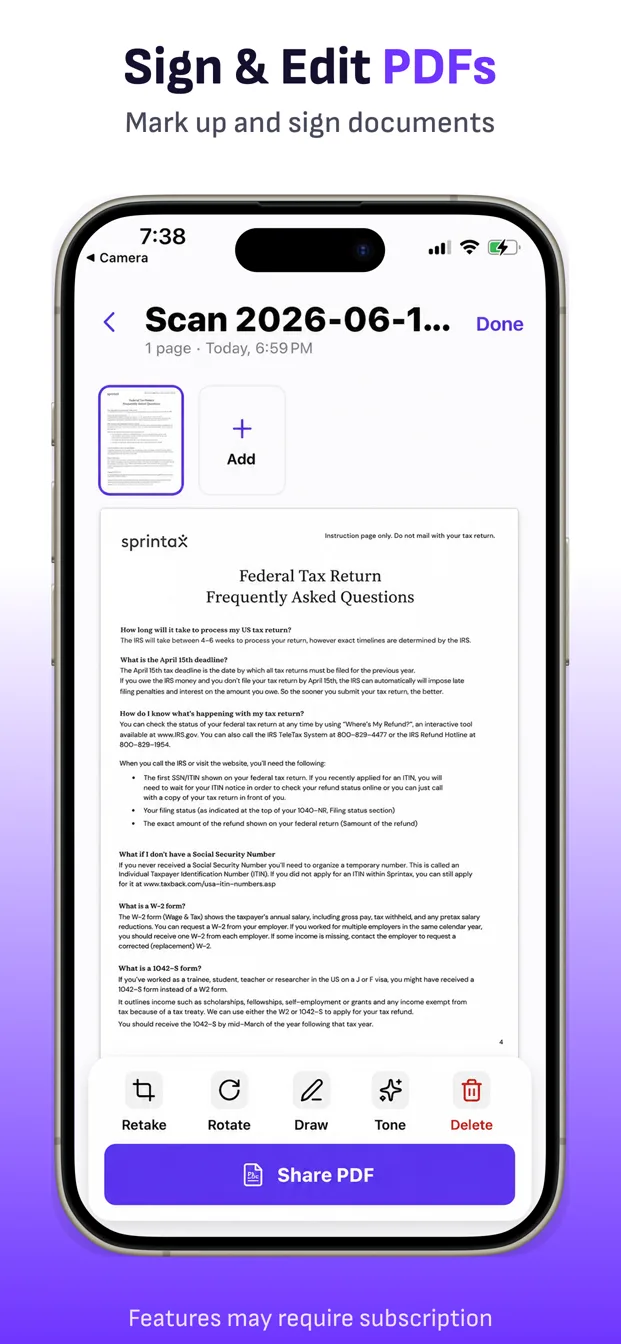
1. Scan the paper or import the file
For paper, open ScanFile and choose Scan. Keep the whole form in the camera view, capture it, review the crop, and tap Keep page. Repeat for every sheet, then tap Save. If the form arrived as a PDF or image file, use ScanFile’s import path instead of photographing a screen.
2. Fix the document before signing
Tap each thumbnail and check the page edges, rotation, readability, and order. Use Adjust or Retake when a page is clipped or blurry. Use Tone only if it makes the form easier to read. A signature should be the final document edit, not a reason to overlook a missing page.
3. Add a signature to the correct page
Select the signature page and tap Sign. Create or choose the signature, position it over the correct line, resize it so it fits, and save the edit. Use Draw for handwritten marks that are not a reusable signature.
4. Inspect the signed page at readable size
Zoom in and confirm that the signature is not covering printed text, that it is on the intended page, and that the image remains clear. Check the thumbnail strip once more for accidental extra pages or personal information the recipient does not need.
5. Create the email with the PDF attached
Tap Export, then choose Email. On a device with a configured mail composer, ScanFile creates a draft with the generated PDF attached. Add the recipient, subject, and message, then open the attachment from the draft if you want one last confirmation before sending.
If Email does not open
The native email route depends on an available mail composer. If it is unavailable, return to Export and choose Phone to open the iOS share sheet. From there, choose Mail, Gmail, Outlook, Files, AirDrop, or another compatible destination installed on the device.
Before you tap Send
- Open the PDF attachment and confirm the signature is visible.
- Check the page count and page order against the original form.
- Use a clear subject such as “Signed consent form – Alex Smith.”
- Verify the recipient address, especially for medical, legal, financial, or employment documents.
Where the document stays
The ScanFile copy remains in the app’s local library unless you delete it. Exporting creates a shareable PDF for the destination you choose. Some scanning or export features may require a subscription, and free exports may include a watermark.
Scan, sign, and send from one place.
Review the finished PDF before it leaves your iPhone.
Download ScanFile