NOTES & PREVIEW COMPARISON
How to scan documents on iPhone without Notes
Apple workflows checked against current iOS 26 documentation · August 17, 2026
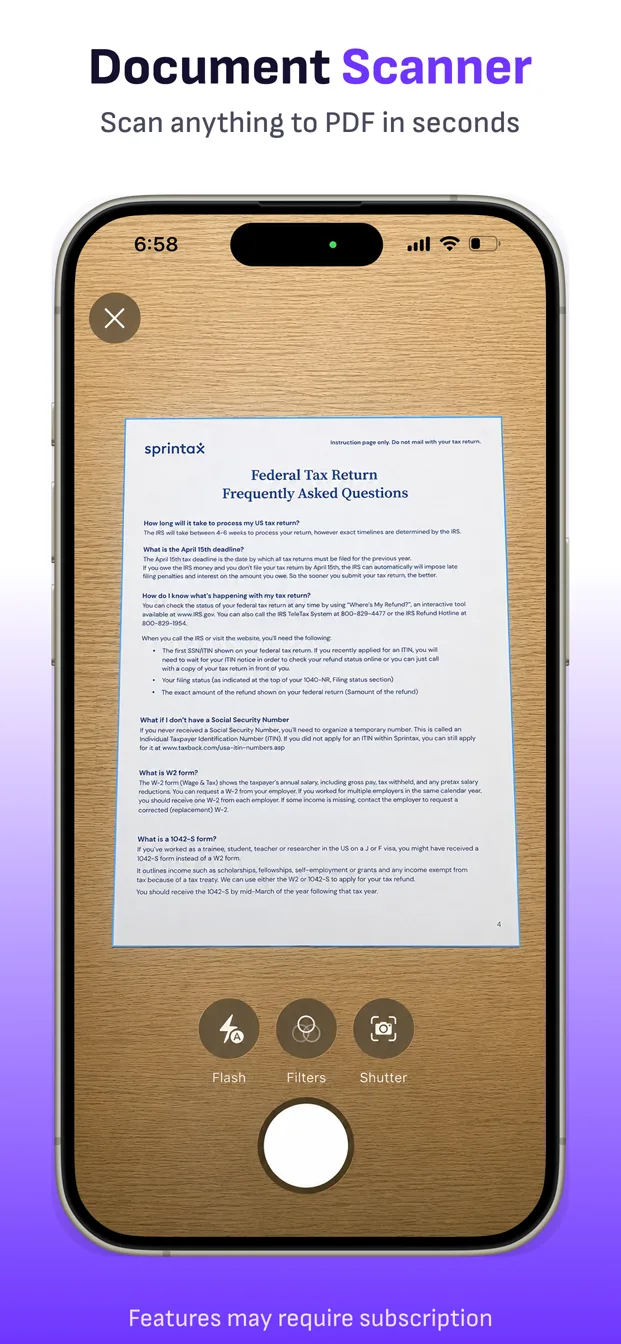
You do not need Apple Notes to scan a document. On current iPhones, Preview and Files can create PDFs with built-in tools. ScanFile is another option when you want a separate scanner library and the same import-review-export workflow for repeated paperwork.
The shortest answer
- Use Preview on iOS 26 when you want a PDF-first Apple workflow.
- Use Files when you want the scan saved directly in a Files folder.
- Use Notes when the scan belongs inside a note or collaboration.
- Use ScanFile when you want a dedicated local scanner library with repeatable page review and import tools.
Option 1: Scan directly in Preview
On iOS 26, open Preview and tap Scan Documents. Preview captures pages automatically or manually, lets you scan additional pages, and provides thumbnail controls for cropping, rotating, and adjusting color before you finish. Apple also documents adding, deleting, moving, and cropping pages in an existing PDF.
Option 2: Scan into a Files folder
Open Files, go to the folder where the PDF should live, tap the More button, and choose Scan Documents. Capture each page, adjust the corners if needed, tap Done, choose the location, and save. This route is useful when folder placement matters more than an app-specific library.
Option 3: Use ScanFile
Open ScanFile, scan or import the pages, inspect each capture, and save the document. In review, you can drag thumbnails to reorder pages, adjust or replace a page, rotate, draw, sign, apply page-level tones, copy recognized printed text, add pages from the scanner, Camera Roll, or Files, and export the PDF through a selected delivery route.
| Need | Apple Notes | Preview / Files | ScanFile |
|---|---|---|---|
| Best starting point | A note that contains a scan | A PDF or Files location | A dedicated scanner library |
| Multipage scanning | Yes | Yes | Yes |
| Crop, rotate, color | Yes for scanned documents | Yes | Yes, page by page |
| Sign or annotate | Yes with Markup | Yes in Preview | Yes with Sign and Draw |
| Import photos or files into the scanner workflow | Attach or insert through Notes workflows | Insert from Files in Preview | Camera Roll, image files, and PDFs |
| Storage model | Inside a note | Files / Preview locations | ScanFile’s local app library until export |
Where Apple’s built-in apps are the better choice
Use Preview when you already manage PDFs in Apple’s file workflow, need its PDF features, or do not want another app. Use Files when the destination folder is the main concern. Use Notes when the document belongs with written context, shared notes, or Apple collaboration. These are strong free built-in options, not incomplete scanners.
Where a dedicated scanner can be easier
ScanFile is useful when scanning is the primary task and you want all saved scans visible in one local library, regardless of whether their pages came from the camera, Photos, Files, or an imported PDF. Its review screen is centered on page correction and export rather than on note-taking or general file management.
Limits to consider
ScanFile may require a subscription for some scanning or export features, and free exports may include a watermark. It does not advertise a searchable text layer in exported PDFs. Apple’s features vary by iOS version, so an older iPhone may not have the current Preview workflow described here.
Apple sources: scan documents in Notes or Files, scan documents in Preview, and edit PDF pages in Preview.
Prefer a dedicated scanner library?
Try ScanFile for a camera-to-review-to-PDF workflow.
Download ScanFile