MULTIPAGE PDF
How to scan multiple pages into one PDF on iPhone
Workflow checked against the current ScanFile interface · August 17, 2026
When a form, contract, class handout, or packet belongs together, the useful result is one ordered PDF—not separate photos. ScanFile keeps each accepted page in the same scanner draft, then opens one review screen before export.
- Capture or import up to the current page limit
- Adjust edges and tone page by page
- Drag thumbnails to fix page order
- Export the finished order as one PDF
1. Start the scanner and capture page one
Open ScanFile, choose Scan, and place the first sheet on a surface that contrasts with the paper. Keep all four corners in the camera view. After capture, inspect the page and tap Keep page only when the crop and clarity look right.
2. Move to the next sheet and keep scanning
Place the next sheet in view and repeat the same capture-and-review step. Every accepted page appears in the page strip at the bottom of the scanner. Continue until the packet is complete, then tap Save. ScanFile saves the accepted pages as one document.
3. Check the entire page strip
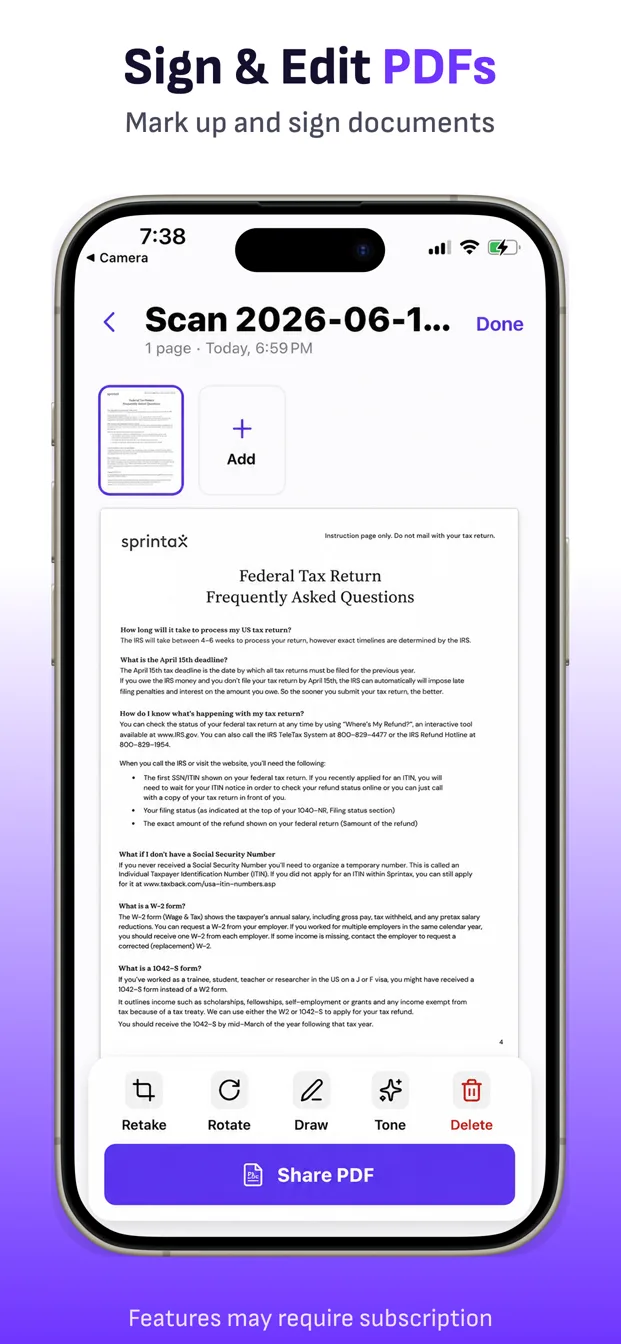
In the finished document, tap each thumbnail and look for a missing page, duplicate, clipped edge, or unreadable photo. The selected page can be adjusted, rotated, drawn on, signed, recolored, or deleted. Use Add to scan another page, import photos, or import image files.
4. Put the pages in the correct order
Press and hold a thumbnail, then drag it to the correct position. The thumbnail order is the PDF order, so confirm the cover, numbered pages, signature page, and attachments before exporting.
5. Replace weak pages instead of rescanning everything
If a saved camera page is wrong, use Adjust when its original image is available. For other pages, use Retake to replace the selected page. Rotate sideways pages and use Tone only when a filter improves readability.
6. Export one PDF
Tap Export, then choose Email, SMS, or Phone. ScanFile builds one PDF from the current page order and opens the selected delivery route. The Phone option uses the iOS share sheet, where you can choose Files, AirDrop, Mail, Messages, or another compatible app.
Troubleshooting a multipage scan
- If a page is blurry, replace that page before export; the rest of the packet can stay.
- If the crop cuts off text, reopen the page and adjust its edges when the source image is available.
- If pages have different color casts, apply a consistent tone only to text pages that benefit from it.
- If the PDF order is wrong, return to review and drag the thumbnails before exporting again.
What ScanFile does—and does not do
ScanFile is a local document library and page editor. It can combine camera captures, photos, and imported file pages, but it does not automatically decide the legal order of a form or verify that a packet is complete. Some scanning or export features may require a subscription, and free exports may include a watermark.
Turn the next packet into one PDF.
Capture, review, reorder, and send from your iPhone.
Download ScanFile